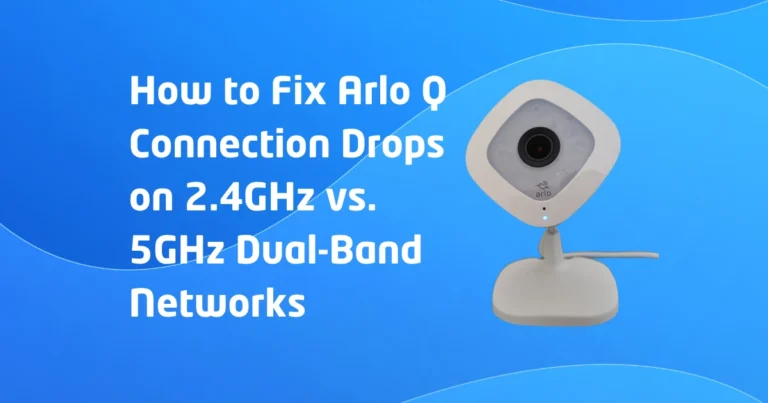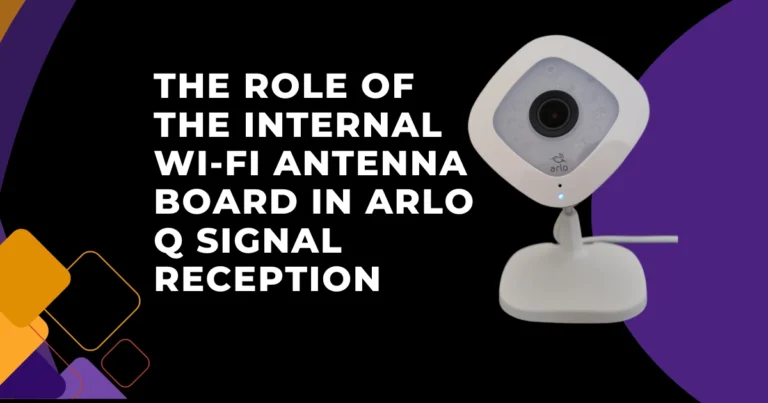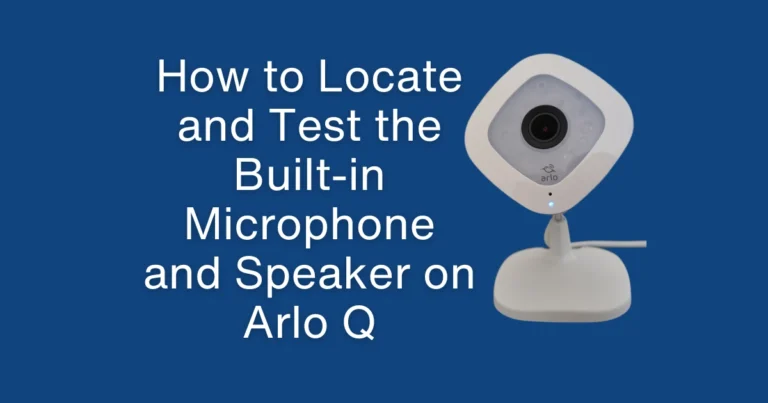

The solid amber LED on the Arlo Q is the device’s distress signal a specific LED state that indicates the camera has powered on (it has enough voltage to initiate startup) but cannot complete its boot sequence successfully. The device is caught between fully off and fully operational, cycling through a startup process it cannot finish. This state, commonly called a boot loop, is one of the more alarming Arlo Q failure presentations because the camera appears to be working (the LED is illuminated, sometimes pulsing) while being completely non-functional. It does not appear in the Arlo app, does not record, and does not respond to normal controls.
The solid amber state has multiple distinct causes that require different interventions. Applying the wrong fix performing a factory reset on a camera in a power-related boot loop, for example wastes time and can in some cases worsen the situation. Working through the causes in the correct diagnostic order resolves the amber LED condition with the minimum intervention necessary.
THE ARLO Q LED STATUS SYSTEM: UNDERSTANDING WHAT AMBER INDICATES
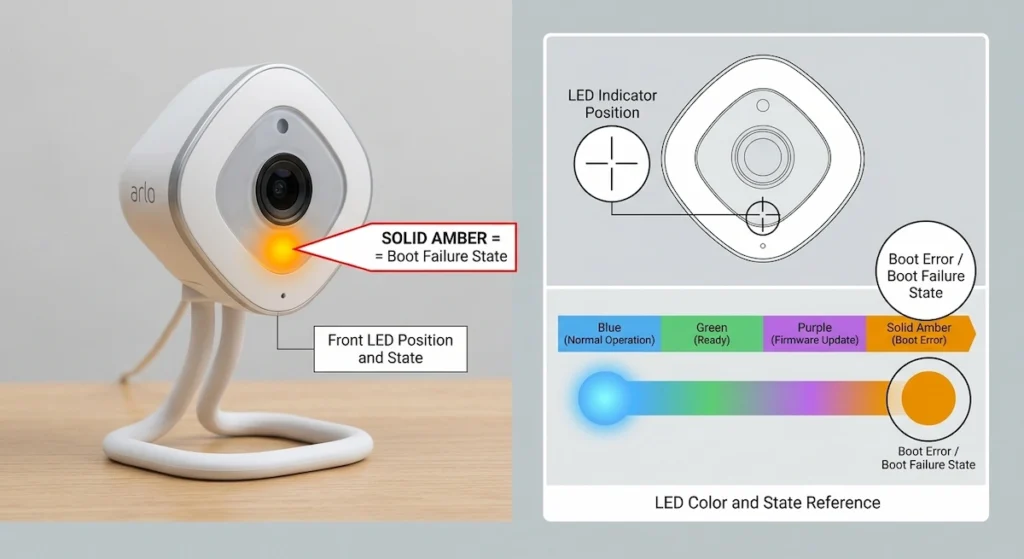
Before diagnosing the amber LED specifically, understanding Arlo Q’s full LED language prevents misidentification of the fault state:
Solid blue: Camera online, connected to cloud, operating normally.
Blinking blue: Camera booting or connecting to Wi-Fi.
Solid amber: Boot failure, startup error, or provisioning failure; the camera is in a non-operational startup state.
Blinking amber: Camera is in setup mode, waiting for Wi-Fi credentials.
Blinking blue/amber alternating: Firmware update in progress.
No LED: No power, or camera is in the normal operational state with LEDs disabled in app settings.
Solid amber is the state of concern in this guide. It is distinct from blinking amber (setup mode) and from blinking blue/amber (update mode). If the LED is blinking rather than solid, the diagnosis path is different from what follows.
CAUSE 1: INSUFFICIENT POWER DURING BOOT (THE MOST COMMON CAUSE)
The Arlo Q’s startup sequence is one of its highest power demand periods. During boot, the processor initializes all hardware subsystems simultaneously, the Wi-Fi radio performs a power-on self-test, the image sensor undergoes calibration, and the operating system loads from flash storage into RAM. This concurrent initialization draws significantly more current than steady-state operation.
If the power supply cannot deliver adequate current during boot, the processor detects a brown-out condition (voltage dropping below the minimum for stable operation), aborts the boot sequence, and enters the amber LED error state rather than continuing to a potentially corrupt partial-boot.
How to identify power as the cause:
The camera shows solid amber immediately after power connection and never progresses further. The amber state may be accompanied by a brief flicker of blue before settling to solid amber (the brief blue is the processor attempting to reach the connectivity stage of boot before the power brown-out terminates the sequence).
How to fix:
Step 1: Disconnect any extension cables or cable runs longer than 6 feet and connect the camera directly to the included short AC adapter cable. If this resolves the amber LED, the cable run has excessive resistance causing voltage drop during boot. See the cable selection guidance in How to Choose the Right Long Micro-USB Cable for Arlo Q Continuous Power.
Step 2: Replace the AC adapter with a 5V/2A (10W) adapter. The included 5V/1A adapter has no headroom for the boot-phase current surge. A 2A adapter provides headroom that prevents brown-out during initialization.
Step 3: Try a different wall outlet, preferably on a different circuit. A circuit with heavy other loads may show voltage fluctuations that affect the adapter’s regulated output.
CAUSE 2: FIRMWARE CORRUPTION
The Arlo Q stores its operating firmware in onboard flash memory. A firmware corruption event, most commonly caused by a power interruption during a firmware update, but also possible from a flash memory write error during normal operation, can leave the firmware in a partial state that cannot complete the boot process.
How to identify firmware corruption as the cause:
The camera was previously operating normally. The solid amber condition appeared after:
- A power outage during which the camera was connected (the outage may have interrupted a background firmware update)
- A firmware update notification that was in progress when the camera was disconnected
- No apparent external event (spontaneous firmware corruption from flash write errors)
The camera shows solid amber immediately on power connection, every time, without variation.
How to fix – Software reset first:
Disconnect power from the Arlo Q for 30 seconds. Reconnect. If the boot sequence progresses differently (even briefly showing a different LED state), the firmware has some ability to recover and the soft reset may have interrupted the loop.
How to fix – Factory reset:
If power cycling does not resolve the amber LED after three attempts, perform a factory reset using the pinhole reset button. With the camera powered (in the amber state), insert a straightened paperclip into the reset hole and hold for 10 seconds. Release. The camera will attempt to restart from a clean firmware state. If the firmware image on the flash memory is partially intact, the factory reset often restores boot capability.
How to fix – Forced firmware re-flash:
If a factory reset does not resolve the amber LED, the firmware image may be too corrupted for the factory reset to recover. In this state, the camera needs to be connected to the Arlo network and receive a forced firmware re-push from Arlo’s servers, which requires the camera to at least partially complete its network initialization. Some partially-bootable devices can achieve enough connectivity for the cloud to push a recovery image. If the device cannot reach the network at all in the amber state, this path is closed, and hardware service or replacement is required.
CAUSE 3: OVERHEATING
The Arlo Q’s processor includes a thermal protection circuit that halts operation if the die temperature exceeds a safe threshold. If the camera is installed in a location with inadequate ventilation in a sealed enclosure, directly under a heat vent, or in direct sunlight through a window, the processor may reach the thermal shutdown threshold during boot and abort the startup sequence.
How to identify overheating as the cause:
The solid amber condition develops during the summer months or after the installation environment’s temperature increases. The camera successfully boots after being moved to a cooler location. The housing is noticeably warm to the touch even shortly after connection.
How to fix:
Relocate the camera to a position with adequate air circulation. The Arlo Q is designed for indoor ambient temperatures (0°C to 40°C). Direct sunlight through glass can create localized temperatures well above 40°C even in moderate climates. Ensure the camera’s housing is not enclosed in cabinetry or a sealed container that prevents heat dissipation.
CAUSE 4: PROVISIONING OR ACCOUNT STATE FAILURE
In some cases, the solid amber state on the Arlo Q is not a hardware or firmware failure but a cloud provisioning state: the camera’s stored network credentials or Arlo account association is in an invalid state that prevents the camera from completing its cloud registration step during boot.
This cause is more common in:
- Previously owned cameras being set up under a new account
- Cameras that experienced a network change (new router, new SSID) that left stored credentials mismatched with the available network
- Cameras that were partially removed from an Arlo account before being fully reset
How to identify provisioning failure as the cause:
The camera reaches the blinking blue (connecting to Wi-Fi) stage briefly before returning to solid amber, rather than transitioning to solid blue. This indicates the Wi-Fi connection is partially established, but the cloud authentication step fails.
How to fix:
Perform a factory reset to clear stored credentials and account association. After reset, the camera will enter setup mode (blinking amber) and accept fresh provisioning through the Arlo app.
DIAGNOSTIC SEQUENCE FOR AMBER LED
Confirm the LED state is solid (not blinking) amber.
Step 1: Test power: Replace adapter and cable with known 5V/2A setup. Does the camera boot?
Step 2: Test power cycle: Disconnect for 30 seconds, reconnect. Does the LED behavior change?
Step 3: Perform factory reset. Does the camera enter setup mode (blinking amber)?
Step 4: Test temperature: Move camera to a cooler, well-ventilated location. Does it boot there?
Step 5: Assess Arlo service status: Check Arlo’s service status page for outages that may affect cloud registration.
Step 6: If all above fail, Hardware fault (processor, flash memory, or main PCB) repair or replacement is required.